

How to Deposit via Blockchain
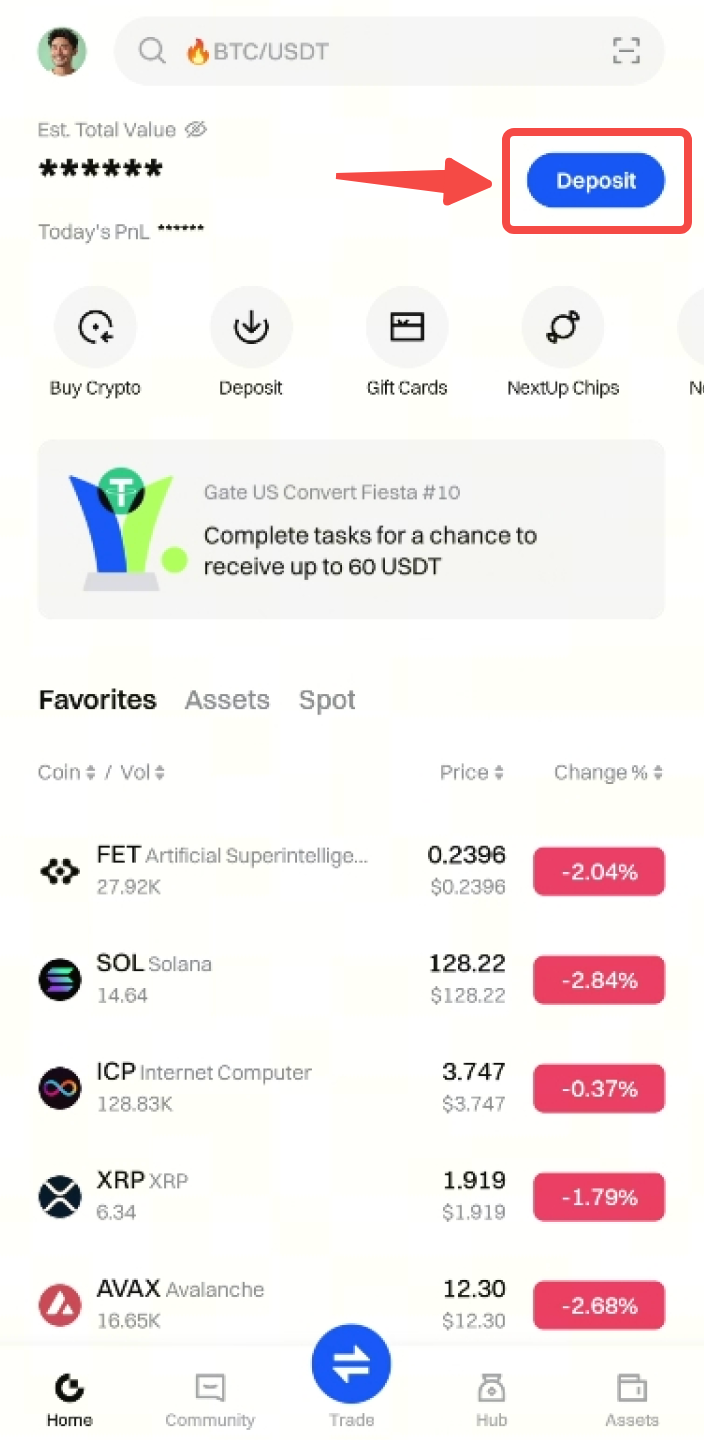
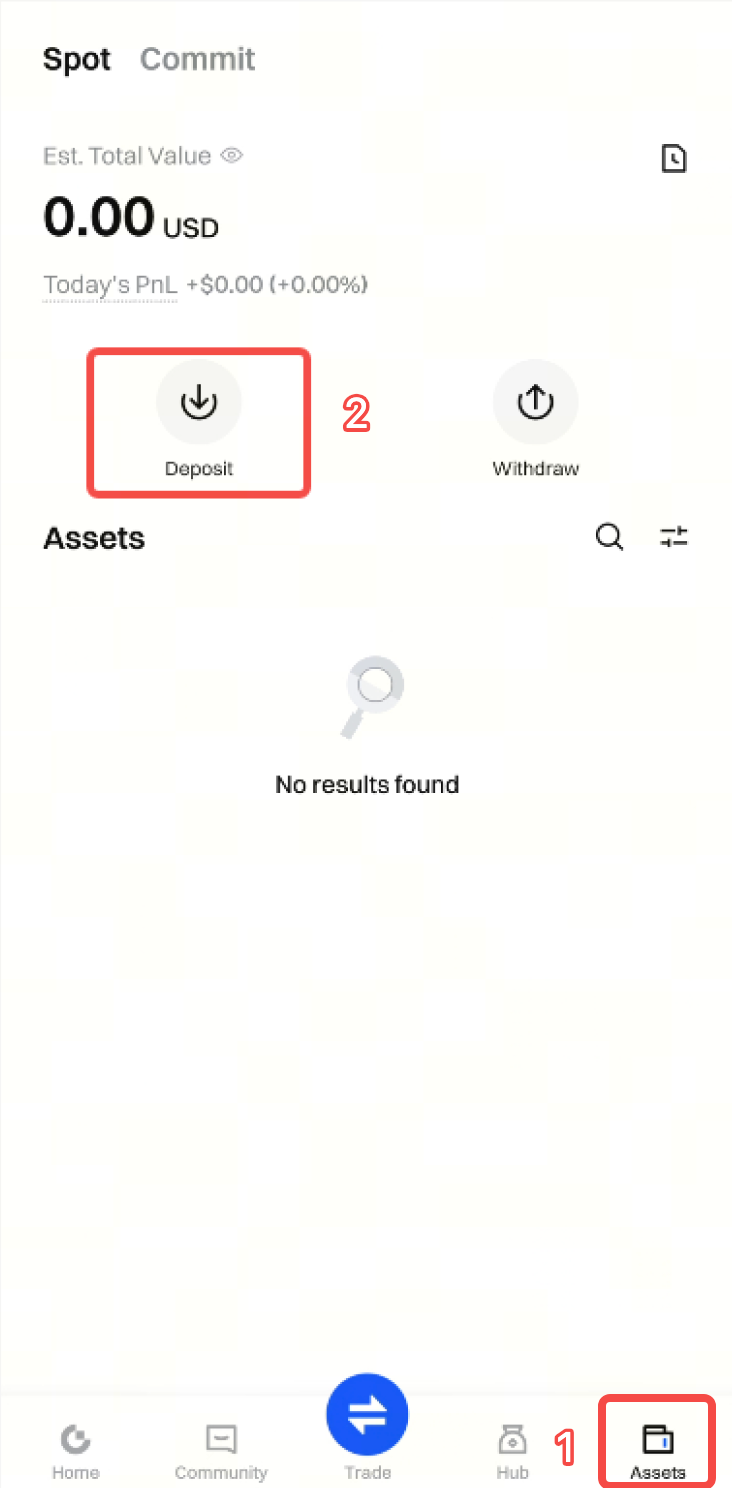
Step 1: Log in to your account on the Gate App. Tap Deposit at the top right corner of the homepage, or go to Assets - Deposit .
 **Step 2:** Select **Onchain Deposit** and enter the cryptocurrency you want to deposit.
Here we take depositing USDT as an example:

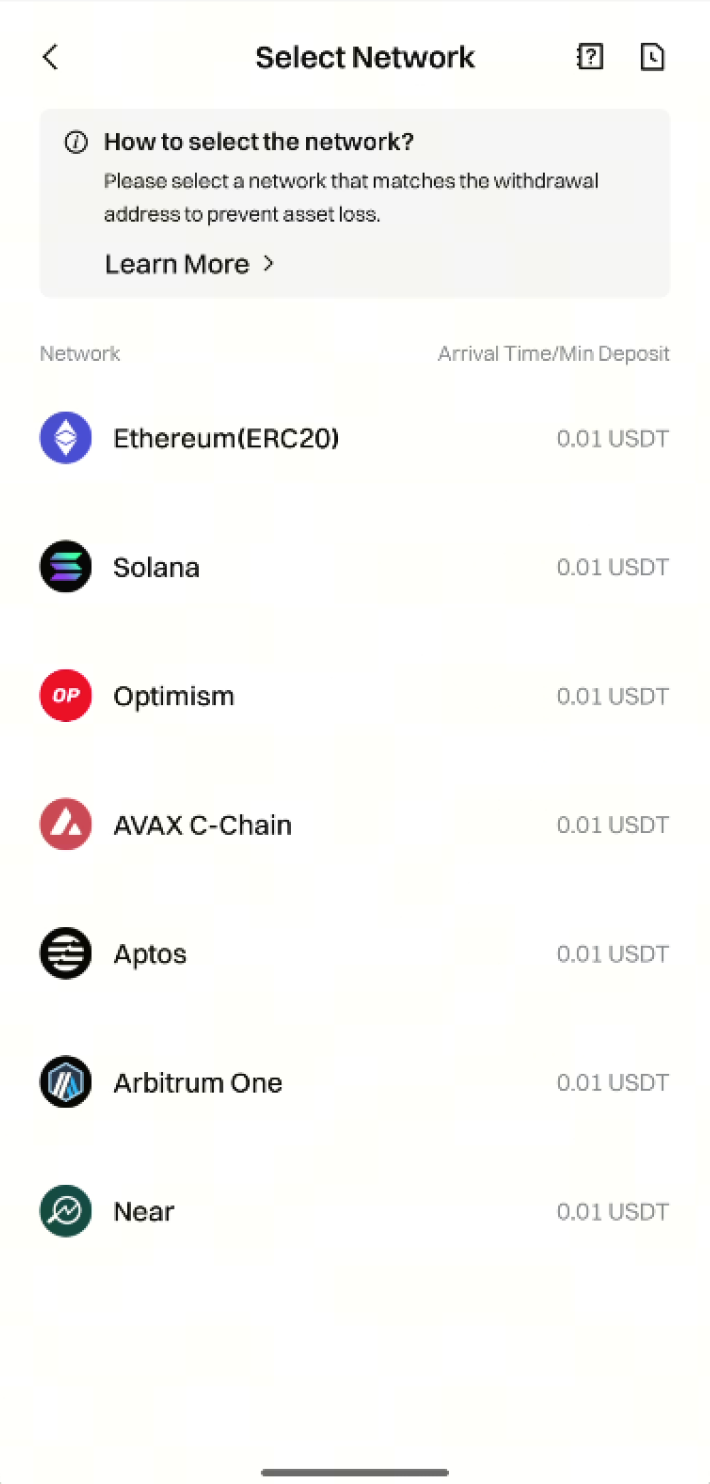
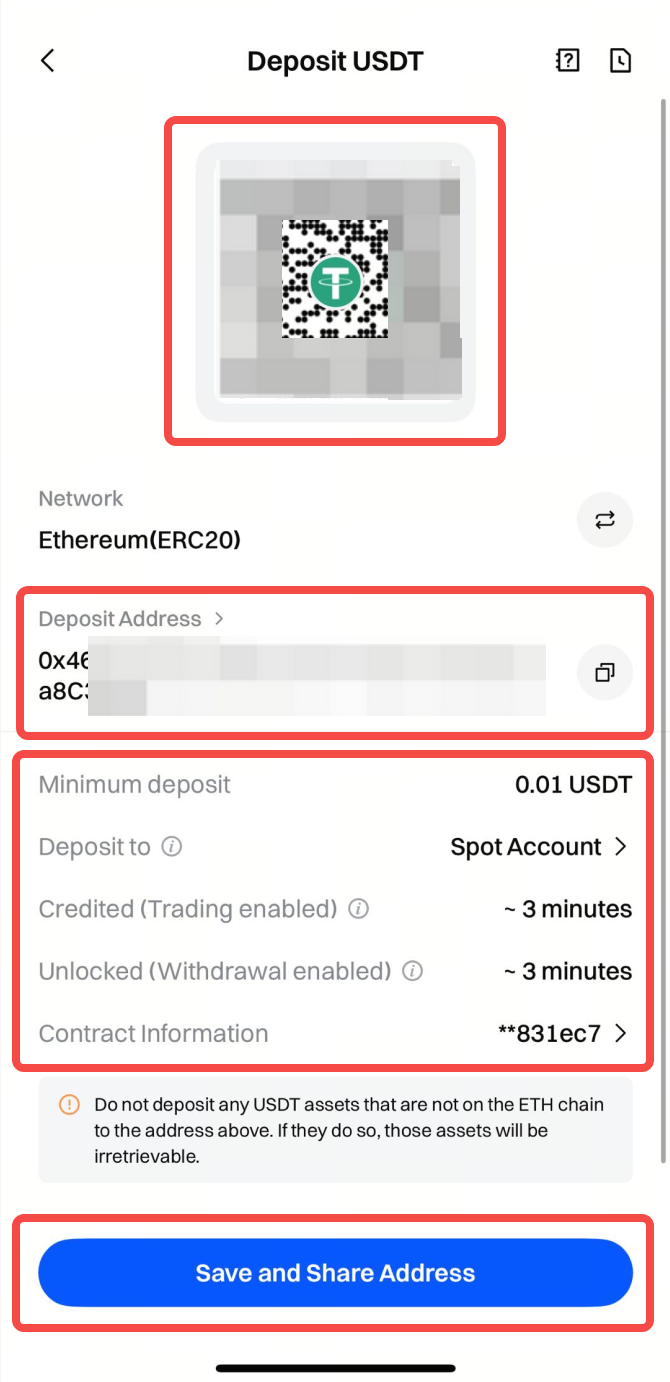
Step 3: Choose the deposit network, then copy the Address or save the deposit QR code.
Notes:
- The selected deposit network must match the network used on the withdrawal wallet or platform, and the contract address must be the same. Otherwise, the funds will not be credited.
- Make sure the deposit amount is not lower than the Minimum Deposit Amount displayed on the page; otherwise, the deposit will not be credited and cannot be recovered.
- If you encounter any problems during the deposit process, please contact Online Support for assistance.
Step 4: Paste or scan the address QR code on the withdrawal platform to complete the deposit.
After the deposit is completed, tap the Notebook icon at the top right corner of the deposit page to enter Recent Trades.


On this page, you can tap each deposit record to view the corresponding Deposit Details.

How to Withdraw via Blockchain
Step 1: Log in to your account on the Gate App. Tap Assets - Withdraw.
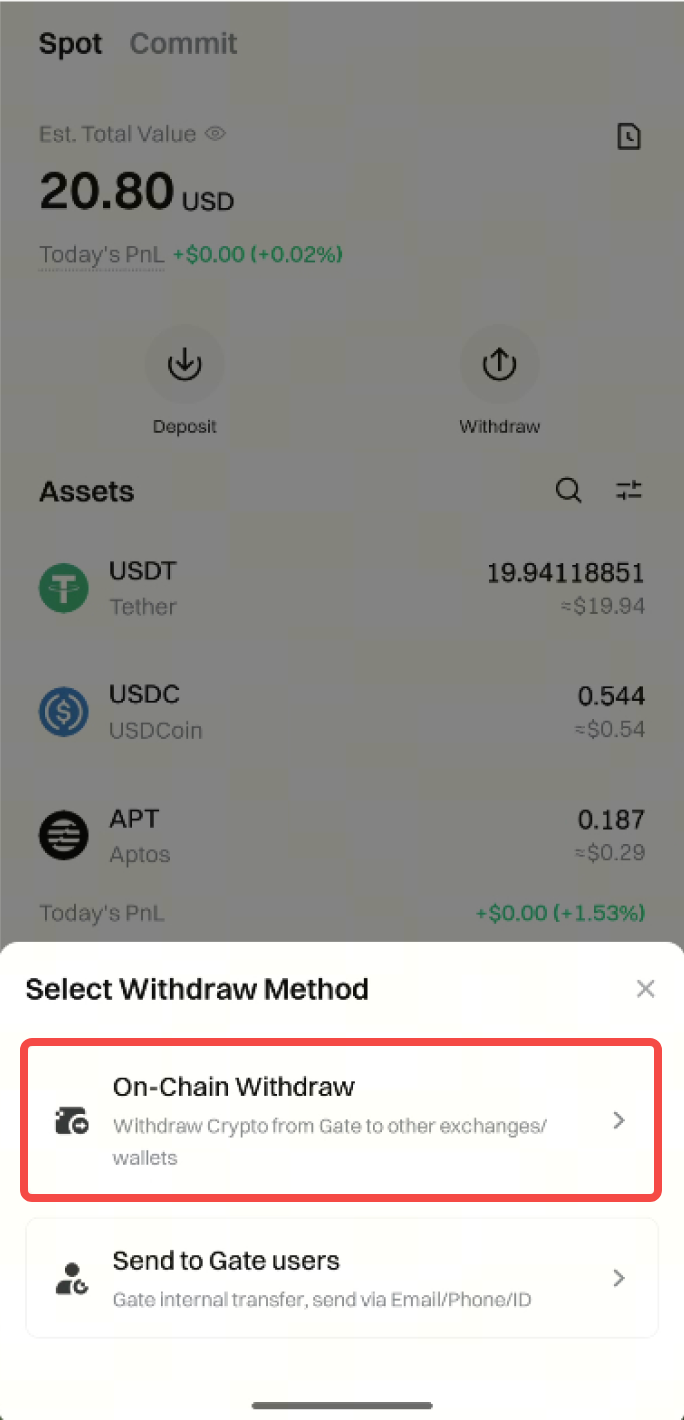
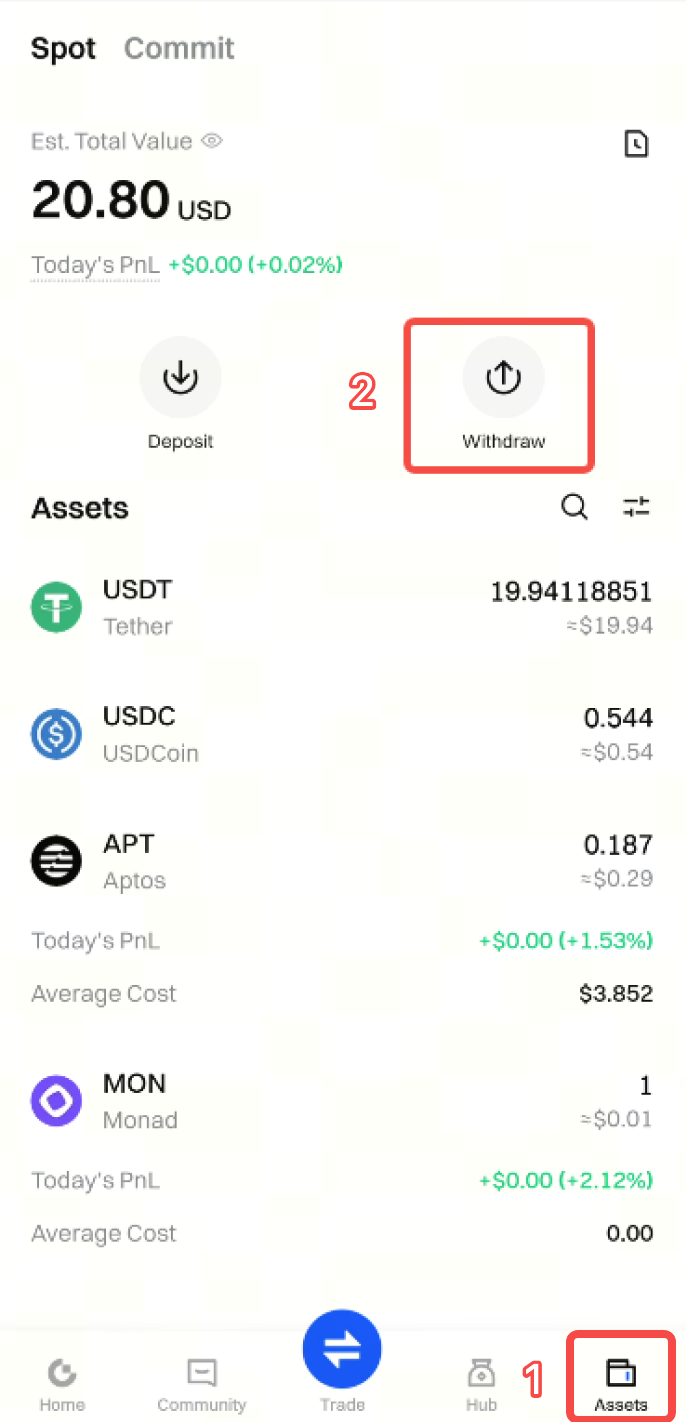 **Step 2:** Select **Onchain Withdrawal** and enter the cryptocurrency you want to withdraw.
Here we take withdrawing **USDT** as an example.
**Step 2:** Select **Onchain Withdrawal** and enter the cryptocurrency you want to withdraw.
Here we take withdrawing **USDT** as an example.
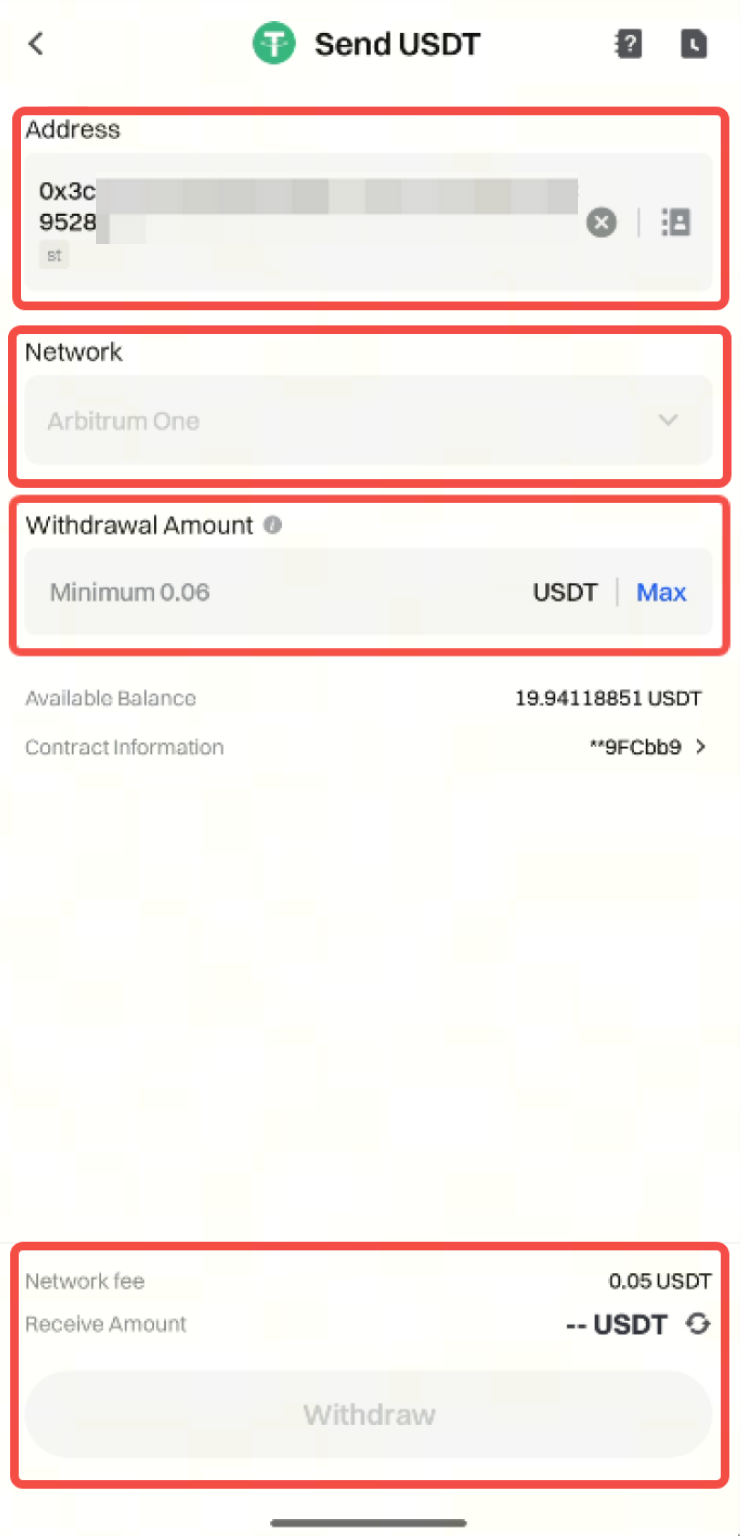
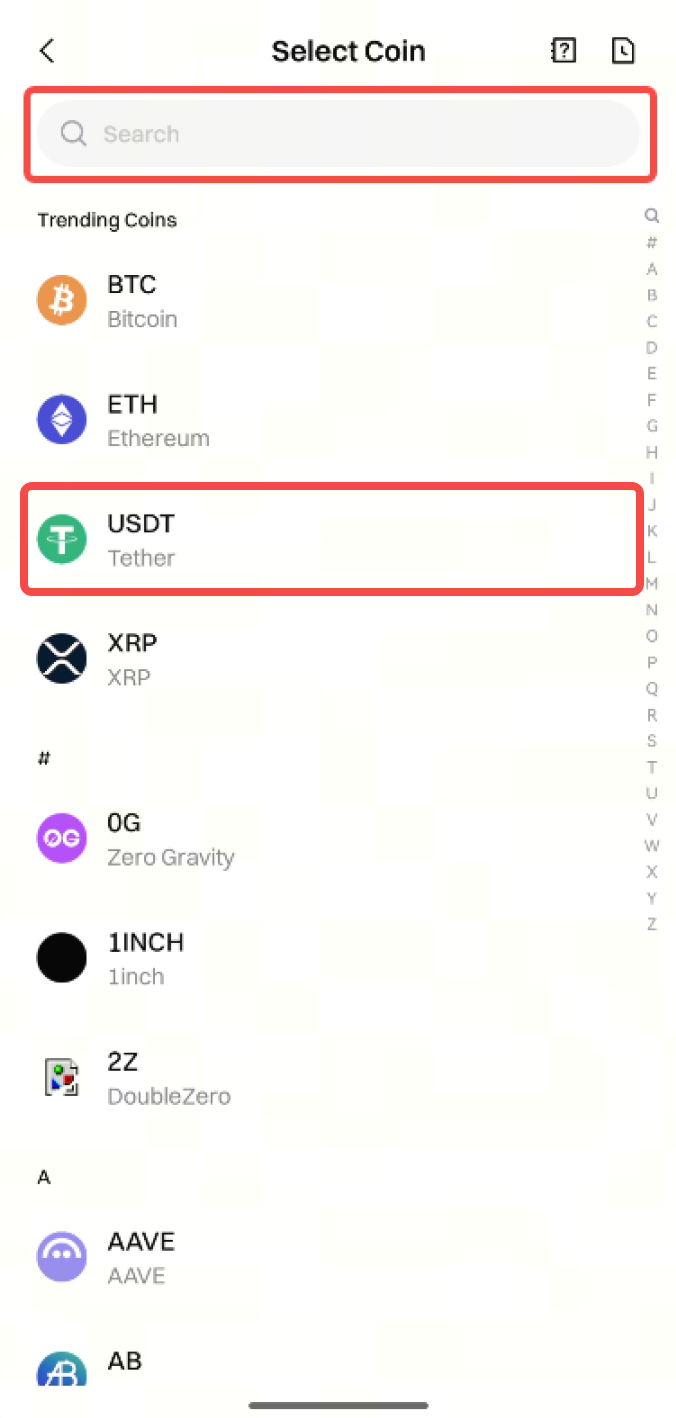 **Step 3:** Select the withdrawal **Network**, enter the receiving **Address** and **Amount**, then tap **Withdraw**.
If you enter incorrect information or select the wrong network when making a transfer, your assets will be permanently lost. Before confirming the transaction, please ensure the information is accurate and correct.
Notes:
- The selected withdrawal network must match the deposit address network, otherwise the withdrawal will fail and the funds will be lost.
- Withdrawal fees vary by coin and network. Please refer to the actual amount displayed on the withdrawal page.
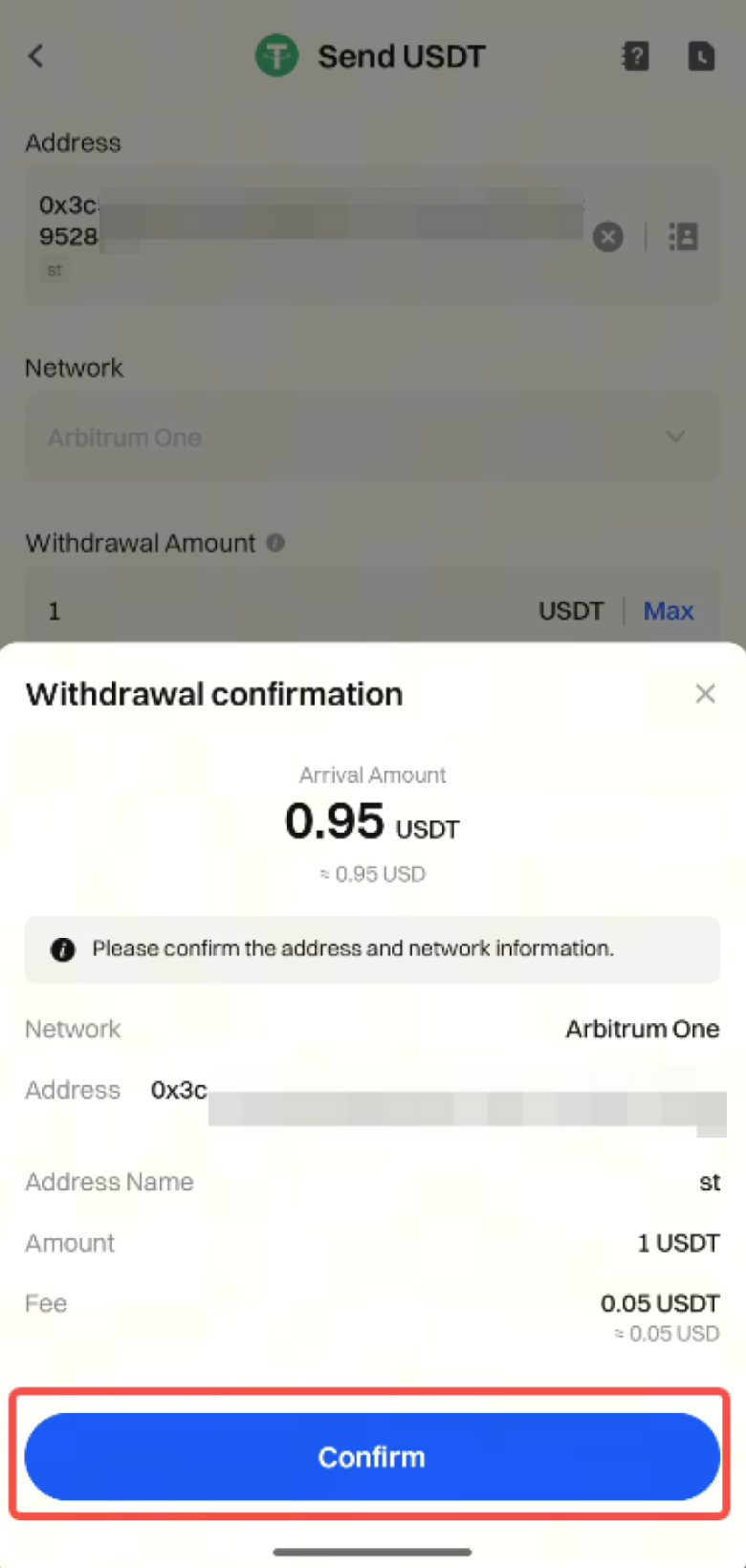
Step 4: Double-check the withdrawal information and tap Confirm.
Then complete the Security Verification by entering your Fund Password, Email Verification Code, SMS Verification Code, and Google Authenticator Code, and tap Confirm again.
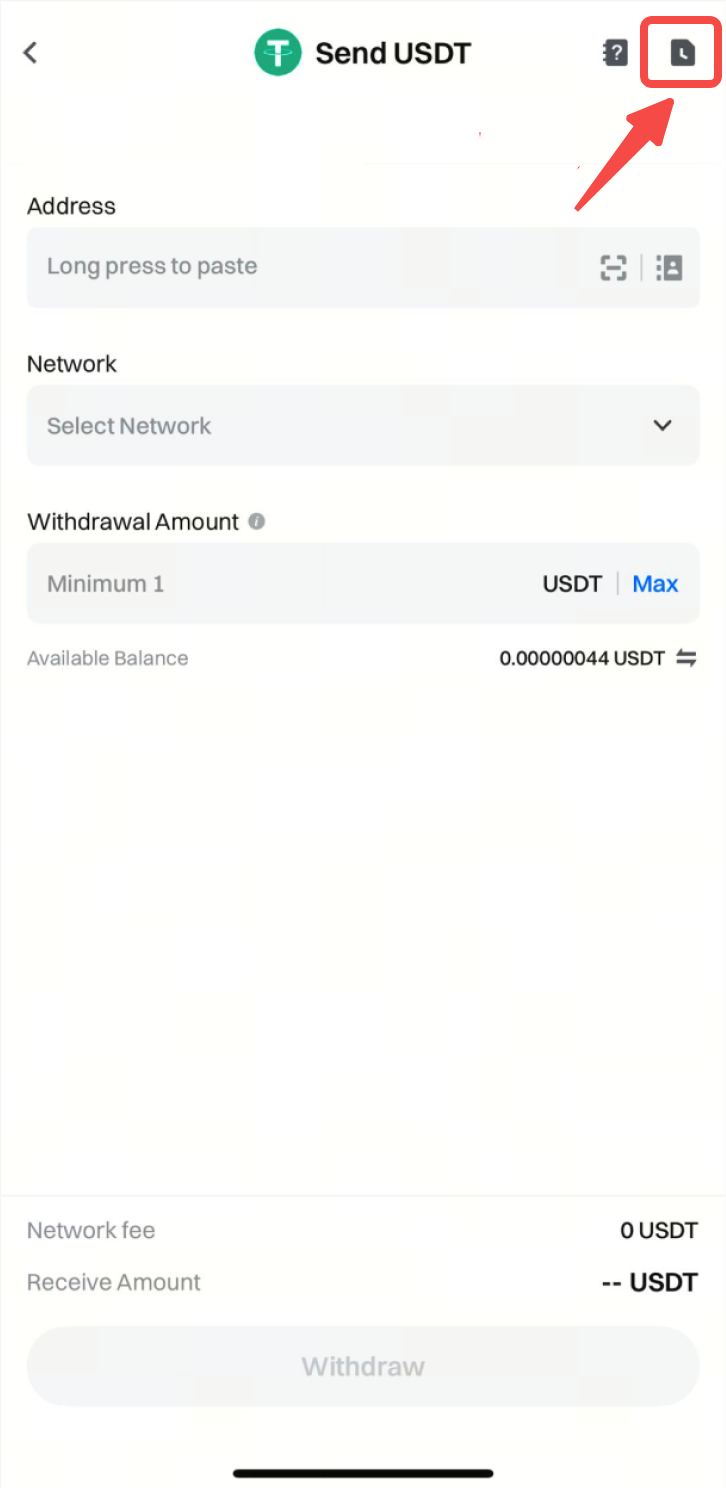
After the withdrawal is completed, tap the Notebook icon at the top right corner of the withdrawal page to enter Recent Trades.
Here you can view your withdrawal history.

On this page, you can tap each withdrawal record to view the corresponding Withdrawal Details.

